

Getting started
Your first Squarespace scan, step by step.
Space is where you review results and track progress. The Chrome extension is the bridge to the Squarespace page you are working on. After creating your account or choosing a paid plan, install and connect the extension before your first page scan.
Use desktop Chrome and a Squarespace site you can manage. Installation happens in Chrome, not in the Squarespace settings.
How it connects
Squarespace page
Open the page in Chrome
Chrome extension
Connect and scan that page
Space workspace
Review and track your work
The short version
Your Space account does not connect your website automatically. Work through these four steps once, then scan pages as you edit them.
- 01
Install in Chrome
Add RapidWombat SEO for Squarespace from the Chrome Web Store.
- 02
Open your site
Visit the Squarespace page you want to improve in desktop Chrome.
- 03
Connect to Space
Open the extension and approve the connection to the right site.
- 04
Scan and improve
Review one page, make a change in Squarespace, then scan it again.
Install the extension in Chrome
Open the RapidWombat SEO for Squarespace listing on your desktop. Choose Add to Chrome, then confirm Add extension.
Use Chrome’s Extensions menu (the puzzle icon near the address bar) to open RapidWombat. Pin it if you want it within easy reach. Return to or refresh any Squarespace tab that was already open.
Open the page you want to improve
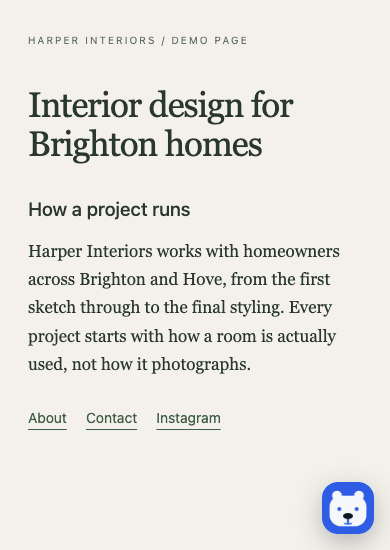
Sign in to Squarespace in Chrome and open a page or its editor preview. Start with your homepage if you are unsure which page to choose. The extension works with the page currently open in your browser; you do not need to set up a whole-site crawl first.
If Chrome asks for access to your Squarespace domain, allow access for the site you intend to scan. For a custom domain, Chrome may ask again for that domain.
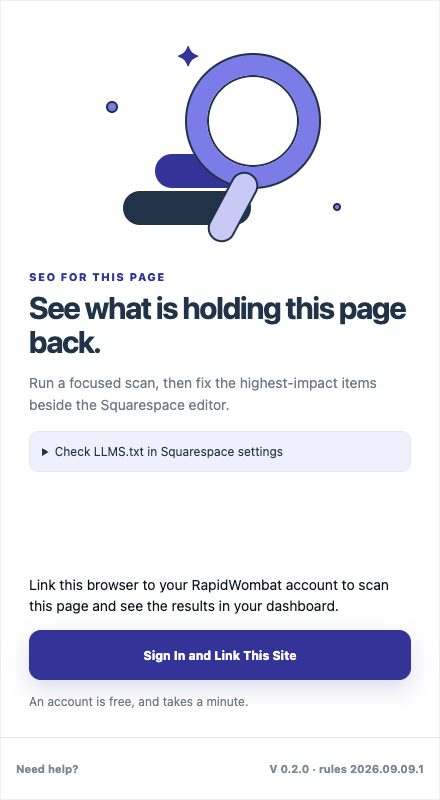
Link the browser to your Space site
Open RapidWombat from Chrome’s Extensions menu or its launcher on the Squarespace page. Choose Sign in and link this site. Sign in to Space if prompted.
On the Connect extension page, check the website address. Select a site already in your Space account, or add this site if it is new, then approve the connection. Use the same site in Space that you have open in Squarespace.
If the extension shows an eight-character code instead of opening the connection link, enter that code on the Connect extension page. Codes expire after ten minutes; reopen the extension for a fresh code if needed.
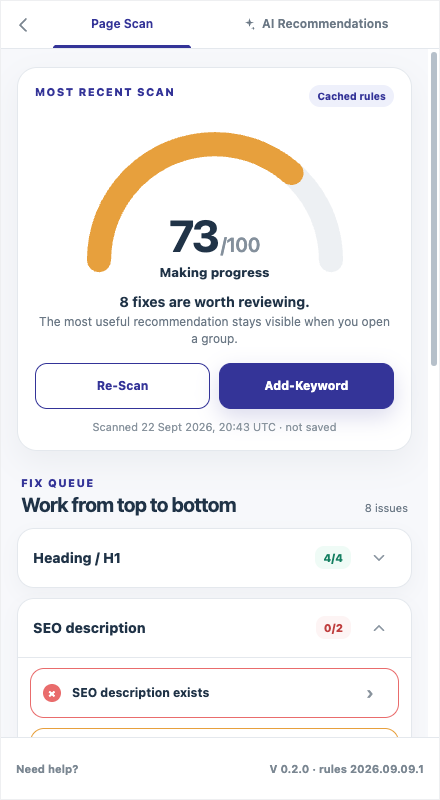
Run your first page scan
Return to the Squarespace page and choose Run page scan in the extension. Review the page score and the grouped findings. Open an issue to see what was found and what you can change. You can add a target keyword if you already know the phrase this page should address.
The findings relate to the page you scanned. A scan does not automatically edit or publish your Squarespace site.
Make one change, then scan again
Pick a clear fix, such as a missing page description or an image without useful alternative text. Use the extension’s explanation or suggested copy as a starting point, make the edit in Squarespace, and save or publish it there yourself.
Choose Re-scan in the extension after the page updates. Check whether the issue changed. Continue one page at a time; search rankings and indexing can take longer than a page scan to reflect an edit.
Review the result in Space
Open Site audit in Space and select the same site. Your saved scans and issues give you a place to return to after you close the extension. The extension brings page data in; Space is where you review the work across visits.
Connecting Google Search Console is optional for your first scan. You can add it later in Integrations to see available search performance data beside your audit work.
If you get stuck
- I cannot find the extension.
- Open Chrome’s Extensions menu, find RapidWombat SEO for Squarespace and pin it. Refresh your Squarespace tab after installing.
- My connection code expired.
- Open the extension again on your site and request a new connection. Enter the new code on Connect extension.
- Chrome is asking for site access.
- Check that the domain is yours or one you manage, then approve access for that domain. Reopen the page and extension if the panel does not update.
- I cannot see my scan in Space.
- Confirm you selected the same site during connection, run the scan to completion, then refresh Site audit.
Still need help? Email [email protected] with the site address, extension version and what happened. Do not send passwords or connection codes.
Ready for your first scan?
Install the bridge in Chrome, open your Squarespace page, then connect it to your Space workspace.